


Aug 17, 2026
Contents
Note
This document serves as a development guide for beginners in Java and JavaFX using Visual Studio Code (VSCode).
There are still relatively few guides available for JavaFX development using VSCode because it previously lacked a well-established development environment for JavaFX. In 2025, extensions for JavaFX were added and organized, making it one of the most accessible IDEs for beginners to start with JavaFX.
This document contains the following content:
- How to set up a VSCode environment for JavaFX
- How to create your first JavaFX project

 Setting up the VSCode environment for JavaFX
In this guide, you will install the following software:
- OpenJDK 25
- Maven 3
- Visual Studio Code and the necessary extensions
- Scene Builder
Installation methods differ depending on the operating system.
Setting up VSCode for JavaFX on Windows
You may be using Windows on Arm. Although Java has an Arm version, the JavaFX libraries fetched via pom.xml do not support the Arm version of Java. Therefore, please install the x64 version of Java. In addition, some parts differ from Windows on x64, so please read the notes for each section.
Step 1. Check your Java version
First, check if Java is installed on your system. Search your Windows OS for the Terminal app. You can do this by clicking the Start menu and typing "Terminal" in the search bar.
Open the "Terminal" (Windows PowerShell) and enter the following command:
java -version

If an error is displayed, Java is not installed on your PC. Otherwise, the installed version of Java will be displayed. In the example in the screenshot above, openjdk version "25.0.4" is shown.
If the major version is less than 25, please uninstall Java. The minor version number (the x.x part of 25.x.x) can be anything. If Java 25 or higher is already installed, no installation is necessary; proceed to Step 3.
Step 2. Install OpenJDK
The first thing we need to install for Java development is OpenJDK. JDK stands for Java Development Kit.
There are many distributions of OpenJDK. Any distribution will work, but this guide uses Eclipse Temurin.
Please download Temurin from https://adoptium.net/temurin and install it.
In the Custom Setup dialog during installation, make sure to select the "Set JAVA_HOME variable" option.
Even if you are using Windows on Arm, please install the x64 version of Temurin.
Step 3. Install Maven 3
Next, we will install Maven, a build tool for Java.
A build tool manages the libraries needed for development projects and enables automatic building. In this guide, we will use Maven to set up an environment for developing and running JavaFX in your projects.
Please download a zip file from the Maven official site, extract it somewhere on your PC, and add MAVEN_HOME to "User Environment Variables". These steps are straightforward for those familiar with development but may be a bit troublesome for beginners. Nowadays, you can simply ask an AI chatbot what Windows environment variables are and how to set them.
Step 4. Install Visual Studio Code
Download and install Visual Studio Code from the official page:
If you are using Windows on Arm, please install the x64 version of VS Code, not the Arm64 version.
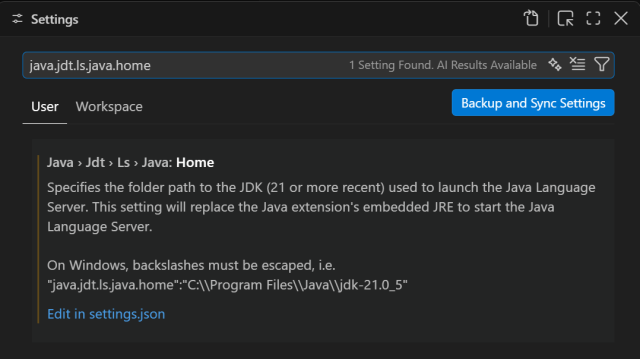
On Windows on Arm, you also need to open VS Code Settings and add the path to Eclipse Temurin as the value of java.jdt.ls.java.home. Below are examples of this setting.

Step 5. Install extensions
Open VSCode and install two extensions for developing Java and JavaFX.
It is recommended not to install any extensions that are not included in the packs below, as their functions may overlap.
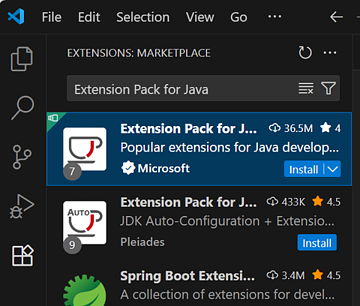
Extension Pack for Java (Microsoft)
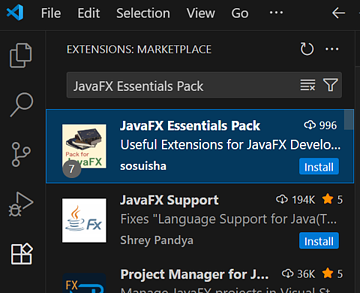
JavaFX Essentials Pack
Step 6. Install Scene Builder
This is a graphical UI editor.
Download and install Scene Builder from the official page:
https://gluonhq.com/products/scene-builder/#download
That's all for the installation. Let's move on to the "Create your first JavaFX project" section
Setting up VSCode for JavaFX on macOS or Linux
Step 1. Check your Java version
First, check if you have Java installed.
Open a terminal and enter the following command:
java -version
If an error is displayed, Java is not installed on your PC. Otherwise, the installed version of Java will be displayed.
If the major version is less than 25, please uninstall Java. The minor version number (the x.x part of 25.x.x) can be anything. If Java 25 or higher is already installed, no installation is necessary; proceed to Step 4.
Step 2. Install SDKMAN!
SDKMAN! is a command-line tool for managing versions of Java-related SDKs and tools.
To install SDKMAN!, copy the line below, paste it into the terminal, and press the Enter key to execute it.
curl -s "https://get.sdkman.io" | bash
After that, close the terminal and open a new one to enable SDKMAN!.
Step 3. Install OpenJDK
The first thing we need to install for Java development is OpenJDK. JDK stands for Java Development Kit.
There are many distributions of OpenJDK. Any distribution will work, but this guide uses Eclipse Temurin.
To install Java, type the following command in your terminal:
sdk install java 25.0.4-tem
Step 4. Install Maven 3
Next, we will install Maven, a build tool for Java.
A build tool manages the libraries needed for development projects and enables automatic building. In this guide, we will use Maven to set up an environment for developing and running JavaFX in your projects.
If you have already installed SDKMAN! in Step 2, installing Maven is straightforward. Type the following command in your terminal:
sdk install maven
You don't need to configure anything further.
If you don't use SDKMAN!, the installation method differs for each OS. If you are a macOS user, you can use Homebrew:
brew install maven
SDKMAN! automatically sets the valid JAVA_HOME and MAVEN_HOME environment variables. If you don't use SDKMAN!, you need to set them yourself.
Step 5. Install Visual Studio Code
Download and install Visual Studio Code from the official page:
Step 6. Install extensions
Open VSCode and install two extensions for developing Java and JavaFX.
It is recommended not to install any JavaFX extensions that are not included in the packs below, as their functions may overlap.
Extension Pack for Java (Microsoft)
JavaFX Essentials Pack
Note: VSCode-compatible IDEs (such as VSCodium)
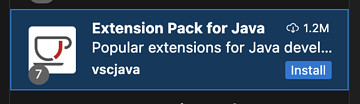
You might need to use a compatible IDE instead of VSCode on your OS. In that case, you will need to install the vscjava extension pack instead of the one from Microsoft.
Extension Pack for Java (vscjava)
Step 7. Install Scene Builder
This is a graphical UI editor.
Download and install Scene Builder from the official page:
https://gluonhq.com/products/scene-builder/#download
That's all for the installation.
Create your first JavaFX project
To create a JavaFX project, use a Maven Archetype.
1. Start generating
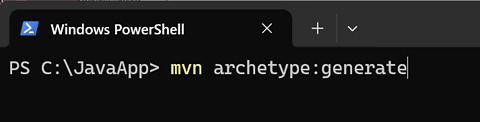
Type the command below in your terminal:
mvn archetype:generate
2. Select jfx-sss-fxml archetype
Since many options will be shown, type jfx-sss-fxml and press the Enter key to narrow the list.

Enter 1 to choose jfx-sss-fxml.

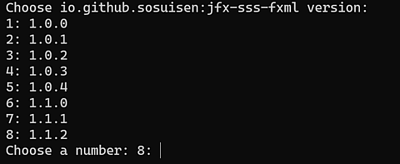
3. Select Archetype Version
Press the Enter key to select the latest version.
4. About your project
Next, you will enter the details of your project.
4.1 groupId
The groupId is your organization's domain name in reverse order (reverse domain name notation). For a simple practice app, you can use com.example as groupId.

4.2 artifactId
The artifactId represents your project's name.
Allowed characters include:
- lowercase letters
- numbers
- hyphens (-)

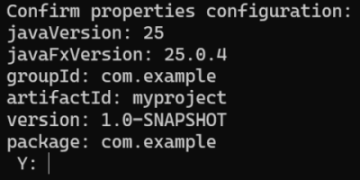
4.3 version and package
For the version and package, you can simply press the Enter key to select the default value.

4.4 Confirmation
Press the Enter key.
5. Project created
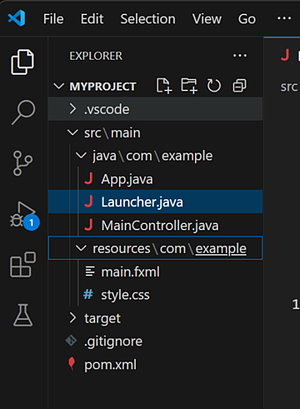
A folder with the same name as the artifactId will be created.
Launch VSCode and open this folder.
You can also open the folder from your terminal by typing:
code path-to-your-project-folder
code is a terminal command to launch VSCode.
6. Launch Scene Builder
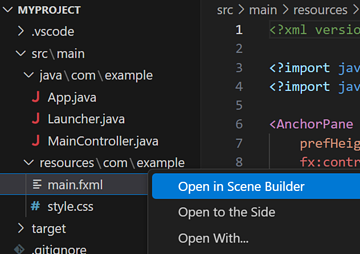
Right-click the main.fxml file and select "Open in Scene Builder" to begin developing with Scene Builder.
This is a graphical UI editor.
7. Launch your app
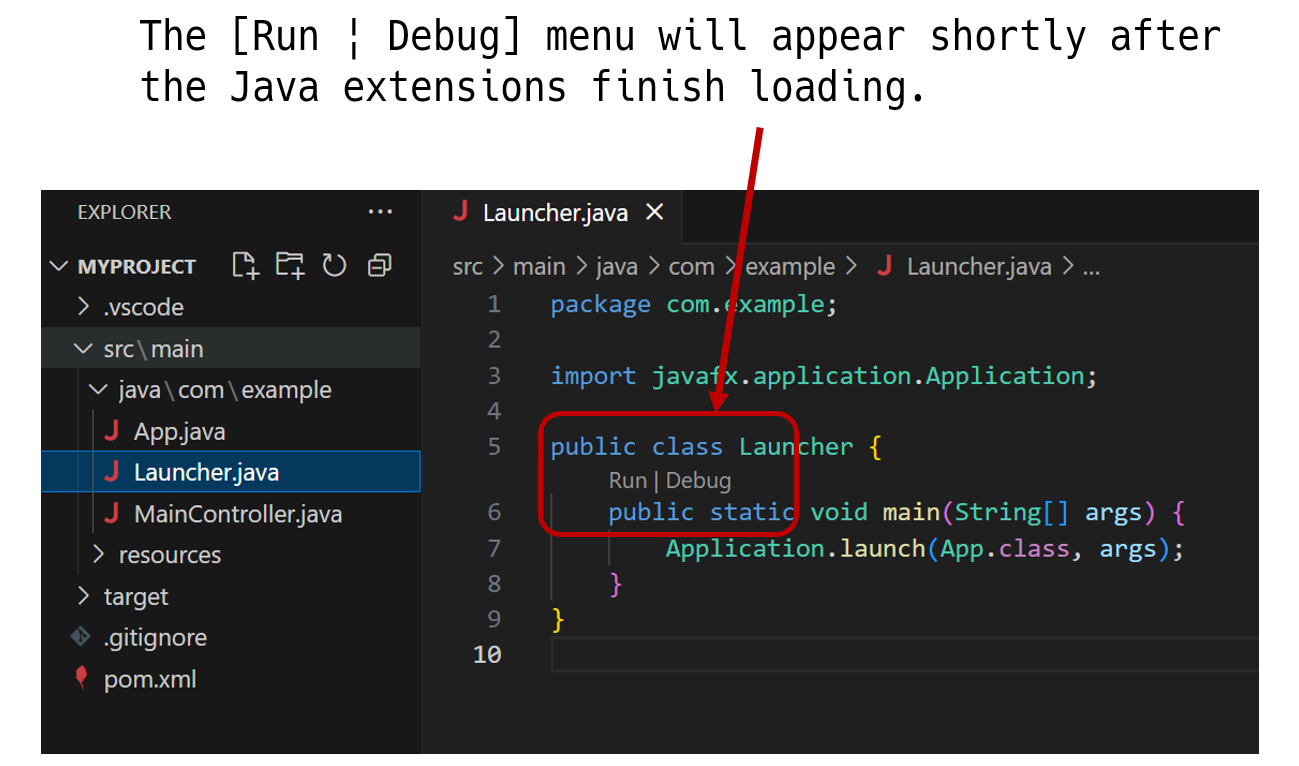
Select Launcher.java and click Run or Debug to launch your app.
A blank window will appear.
8. Build an executable
To create an executable (.exe, .dmg), open a terminal in VSCode and run the following command:
mvn clean package
The generated executables are located under target\jpackage\.
9. About archetypes

These archetypes do not utilize Java's module system (JPMS). While many JavaFX samples adopt JPMS, it may be too complex for beginners looking to create desktop applications with JavaFX.
If you want to explore an architecture similar to MVC, the javafx-sss-fxml-mvc archetype will be a helpful reference.
Conclusion
This is just the starting point.
If you use libraries for development, you need to search on Maven Central (https://central.sonatype.com) and add the dependencies to your pom.xml.
If you want to customize the build, you will need to learn more about Maven.
Enjoy your journey with JavaFX!

 JavaFX